WordPress Service Area Routing: Qualified, Coming Soon and Not Available
A yes or no ZIP check hides your real coverage. Set up Qualified, Coming Soon and Not Available groups with their own messages and redirects in AreaPulse.
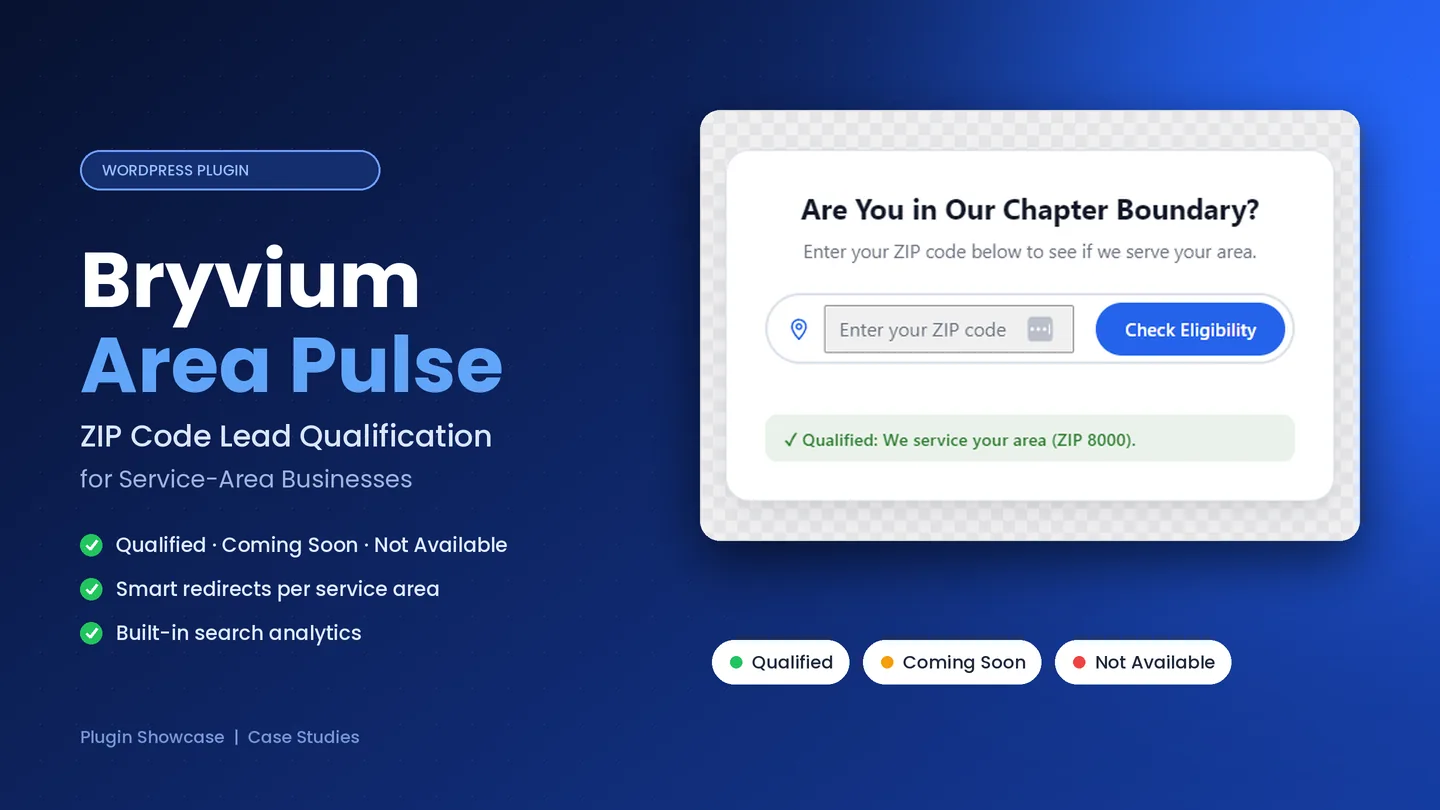
A ZIP checker that only answers "covered" or "not covered" forces every real situation into one of two boxes. The crew that opens two new ZIP codes next spring does not belong in the same box as a city you will never serve. A neighborhood association that has not yet voted in a new subdivision is not the same as a town outside its charter.
When I built Bryvium AreaPulse, the WordPress plugin I designed and developed, I made the three-status model the core of it. This article walks through how that model is set up and how the pieces fit together.
1. Stop Treating Coverage as a Yes or No
Real coverage lists already have more than two states. AreaPulse turns that list into what the visitor sees:
| Status | What the visitor should understand | Typical destination | | ----------------- | --------------------------------------------------------- | ----------------------------------------------------------- | | Qualified | We serve this ZIP code, or you are eligible to join. | Booking page, quote form, join application | | Coming Soon | We are not active here yet, but we want to hear from you. | Waitlist page, expansion landing page | | Not Available | This ZIP code is outside our footprint. | Alternate branch, partner, coverage page or a plain decline |
Each Service Area Group owns its status, its result message and its redirect. The message can include %s, which is replaced with the ZIP code the visitor typed. The redirect can have a delay, so the result stays on screen long enough to read before the page moves on.
2. Setting Up Groups for a Home Service Footprint
Here is an example setup for a contractor around Dallas. The ZIP codes are only an illustration.
- Qualified: the ZIP codes of the current crews. Messages point toward booking, and the redirect goes to
/schedule-a-quote. - Coming Soon: two ZIP codes where a second crew starts next quarter. The message says the area opens soon, and the redirect goes to
/waitlistafter four seconds. - Not Available: a group for neighboring ZIP codes that keep sending requests, with a message that links to
/service-area.
Marketing can then announce that the company is taking interest from the new ZIP codes, without letting anyone book a same-week install there. Without a Coming Soon group, those visitors either show up as false qualified leads or get lumped in with the areas you will never cover.
The full card layout fits service area pages and campaign landers. The compact bar fits the header, using [zip_code_checker mode="compact"], so every page has a way in.
3. Using the Same Setup for a Membership Boundary
The engine does not care whether the destination is a booking page or a join form, so the same three groups work for an association. Current members' ZIP codes lead to the application. A new phase of a subdivision that the board has not annexed yet leads to a waitlist page. Adjacent ZIP codes that apply because a social media group is public get a firm message explaining the boundary.
The only difference from the contractor example is where each group redirects. The reasoning behind putting this gate ahead of the form is covered in why a ZIP check belongs before the contact form.
4. Managing the List: Groups, CSV and Placement Overrides
A three-status model only helps if the person maintaining it can keep it current. This is what the admin gives them:
- Named groups with their own status, so a list of thousands of ZIP codes does not live in one text box.
- CSV import and export as a single
zipcolumn or aszip,group, with Merge or Overwrite on import. The file must be a.csvunder 2 MB, and in the two-column format the header row has to read exactlyzip,group. - Placement overrides on the shortcode (
title,subtitle,cta_url,button_text,placeholder,success_message,error_message), so the service page and the join page can use different headlines and buttons from the same plugin. - Analytics with counts per status, a Top 10 of searched ZIP codes and recent activity, so you can see which areas people ask about, including the ones you do not serve.
The Styling tab handles the look. It has four presets, Dark Mode and typography controls, so the checker blends into a Bricks or Oxygen layout without custom CSS.
5. How Messages and Redirects Resolve
When several settings could apply to the same search, AreaPulse follows a fixed order:
- A matched group's own redirect overrides the Global Default Redirect Rules.
- ZIP codes on the Quick List, which have no group, follow the global rules.
- A matched group's custom message takes priority over the
error_messageset on the shortcode.
Knowing this saves a lot of debugging. If a redirect is not firing, check the matched group's redirect fields first, then the global rules. If a message looks wrong, look at the group before the shortcode.
AreaPulse is sold directly and licensed per website. I prepare each copy for the buyer's domain and handle support myself. The case study has the details on licensing and how the plugin is built.
Want this routing on your site?
- Schedule a Direct 30-Minute Discovery Call: Book via Calendly
- Get in Touch Directly: Visit the Contact Section
- Product case study: Bryvium AreaPulse
Work With Me
Ready for a Faster, Lead-Generating Website?
I design and build custom Next.js and WordPress websites for builders, HVAC companies, contractors and growing businesses. Answer a few questions and book a discovery call to talk through your project.
Related Reading
Case Study: Bryvium AreaPulse, a WordPress ZIP Code Checker for Service Areas
How I built AreaPulse, a WordPress ZIP code checker that sorts visitors into Qualified, Coming Soon, or Not Available before the form. No geocoding API needed.
How to Qualify Leads by ZIP Code Before a WordPress Contact Form
Stop collecting form entries from outside your area. Why a ZIP code check belongs before your WordPress contact form, and how AreaPulse does it without a maps API.
Case Study: Modernizing Battle Hill Association's Web Platform & Search Visibility
How a complete architectural rebuild using Oxygen 6, custom PHP/JS event logic, and technical SEO turned an invisible, cluttered site into a top-ranking, high-converting digital platform.